Reels Audio Download Guide: Save Background Music from Instagram
There’s a special kind of chaos in hearing the perfect background track on a Reel, thinking “this is exactly what my edit needs,” and then… doing absolutely nothing about it because Instagram gives you vibes, not files.
You tap the audio name, see “Use audio,” and realise that helps inside the app, not in CapCut, Premiere, or your actual project.youtubecapcut+1
This site is about one thing: download and extraction.
We’re going to talk about how to turn background music from Reels into real audio you can save, reuse, and drop under your own videos without needing a sound engineering degree or screen‑recording your entire life.reelsave+5
THE THING NOBODY ACTUALLY SAYS OUT LOUD
Here’s the bit most tutorial channels politely skate past: Instagram is very happy for you to use background music inside Reels, and very uninterested in you walking away with an MP3.
Inside the app, everything is smooth:
- Tap the audio name at the bottom of a Reel, open the audio page, hit the save/bookmark icon, and that sound sits in your Saved audios for future Reels.capcut+1
- Tap “Use audio” and the track comes straight into the Reels editor with mixing controls and “Original Audio” tags.capcut+1
The second you want that same background music in CapCut, on your PC, or under a YouTube Short, the UI suddenly acts like you’re asking for state secrets.
So everyone resorts to three quiet hacks that guides now document almost openly:
- Story‑save trick: one YouTube tutorial literally walks you through adding the Reel to your story, tapping the ellipsis, hitting Save to download the story as a video, then sending that video to your computer and “pulling the audio from the video” in whatever editing software you use.youtube
- Screen‑record trick: same creator’s second method is “use your phone’s screen recording,” line up the Reel or audio in IG, start recording, then import the screen record into an editor and “extract the audio from the visual.”youtube+1
- Third‑party audio downloader trick: method three is exactly what you’re thinking copy the post link, paste it into a browser tool that says “download Instagram reel audio,” click download, be careful about fake buttons, then grab your MP3 from the downloads folder.fastvideosave+3youtube
The part nobody says bluntly is:
- Tools like ReelSave.App Audio exist specifically to do this: “Find the Instagram post, click the three dots, copy link, go to reelsave.app/audio, paste, click Download icon, then ‘Download Audio’ to save the file.”instagram+3
- FastVideoSave’s audio page does the same: copy link to Reels video, open fastvideosave.net/audio, paste, click Download, wait while it “converts videos, IGTV, reels to mp3 audio only,” then click to download Reels audio only.fastvideosave
- INDownloader says the quiet part loudly: “Our IG audio downloader… extract audio from Instagram videos as MP3… copy link, paste into search box, press enter, click download to save the video as an MP3 clip.”indownloader
- Descript even has a landing page for “Extract Audio From Instagram Reels | Instant MP3 Converter,” selling itself as a Reels‑to‑MP3 pipeline for editing and collaboration.descript
- Speechify’s audio download guide for Android, iPhone, and PC spells the pattern out: copy video link with three dots → paste into a video/audio downloader → press convert → download MP3 to your device.speechify
So no, you’re not weird for wanting background music outside the app.
You’re just bumping into a product that stopped helping right at the point where you need it most.
The pop‑culture version: it’s like watching a Netflix show, loving the soundtrack, and being told your only option is to rewatch the episode every time you want to hear it.
HOW THIS ACTUALLY WORKS THE REAL MECHANICS
If you strip out the fluff, saving background music from Reels is always one of three mechanics:
- Save / download a video that contains the music.
- Extract the audio track from that video.
- Or skip step one and let a tool do both for you from a link.
Mechanic 1: Copy link → audio downloader → MP3
This is the cleanest way when the Reel is public and the background music is the main sound.
Every serious audio guide now shows some variation on this:speechifyyoutube
- Open Instagram and find the Reel with the background music you want.
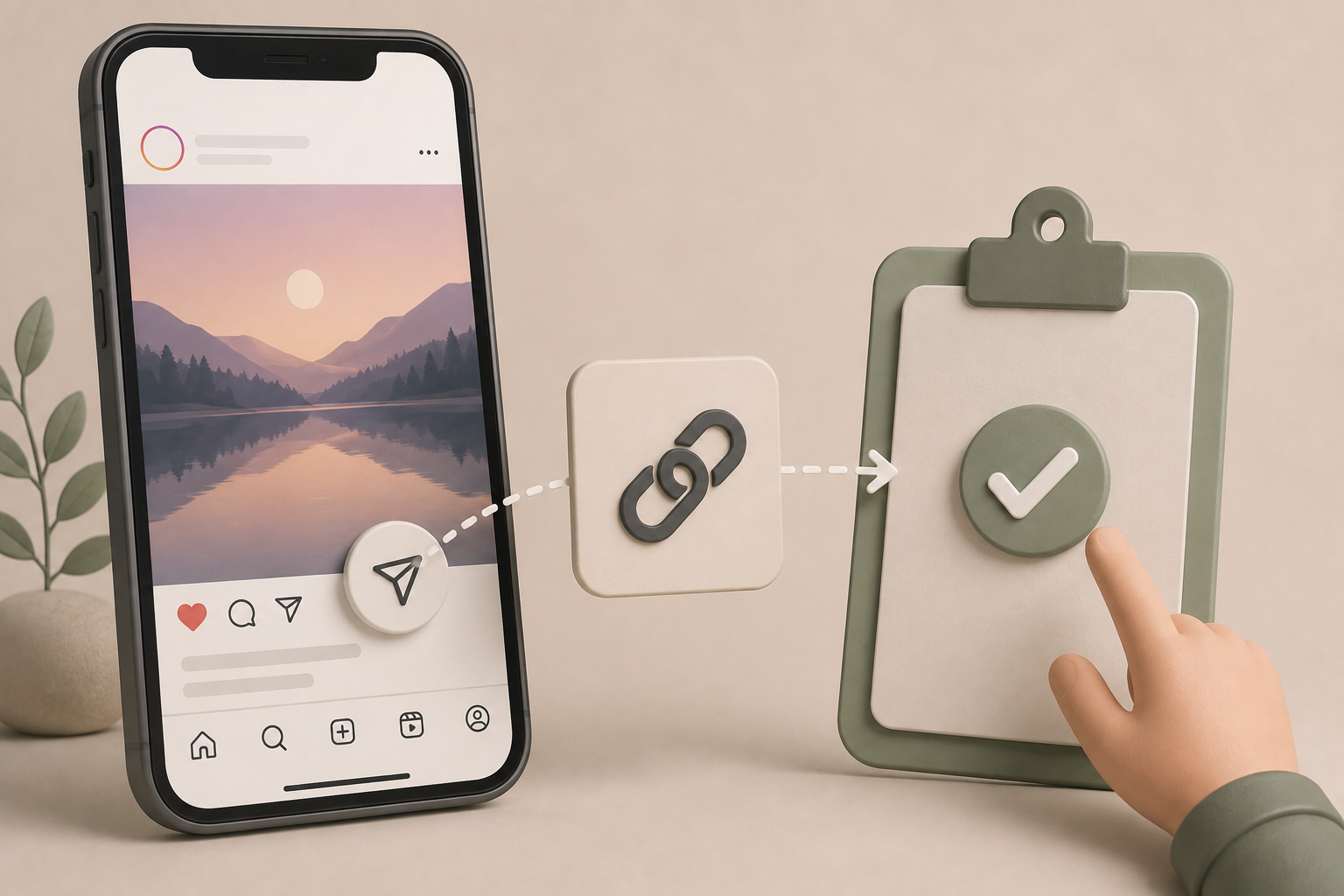
- Tap the three dots (…) or the paper airplane icon and select “Copy Link.”reelsave+3
- Open a browser‑based audio downloader:
- ReelSave.App Audioreelsave+2
- FastVideoSave Audiofastvideosave
- INDownloader Audioindownloader
- AudioDropperinstagram+1
- Hitube or similar IG audio tools listed alongside AudioDropper.instagram
- Paste the Reel URL into the input box and click Download / Download Audio.reelsaveapp+1youtubespeechify+2
- Wait for the site to process; then click the final “Download Audio” button to save the MP3 or M4A file to your device.instagram+5
ReelSave’s own steps are literally:
- Find the post.
- Click three dots.
- Copy Link.
- Visit reelsave.app/audio/.
- Paste URL.
- Click download icon.
- Then click “Download Audio” to save background music as MP3.instagram+3
FastVideoSave’s audio page has a section labelled “How to download Instagram reels Audio only?” and repeats: copy link → open /audio/ → paste → click Download → “Reels video will be converted to Audio mp3… Download Reels audio only.”fastvideosave
Speechify describes the same flow for both phone and PC: copy link via three dots → paste into a downloader → hit convert → click download to save the high‑quality audio file.speechify
Mechanically, what’s happening:
- Tool fetches the Reel’s video.
- Splits video and audio.
- Encodes audio as MP3 or M4A.
- Hands you the result.
If all you care about is the background track, this is the one‑step route.
Mechanic 2: Story‑save or screen‑record → extract audio
This is the “I don’t want to deal with websites right now” route.
YouTube’s three‑method tutorial lays out both clearly:youtube
Story‑save method:
- Find the Reel with the song or audio you want.youtube
- Tap the share arrow, choose “Add story to reel,” but don’t actually post it.youtube
- Tap the ellipsis (…) and tap Save; this saves the story (with the Reel audio) to your phone’s gallery.youtube
- Send that video to your computer (AirDrop, email, etc.).youtube
- Open any video editor (Premiere, Final Cut, Descript, even basic ones) and “pull the audio from the video,” then export audio as a separate file.descriptyoutube+1
Screen‑record method:
- Line up the Reel or audio in Instagram.
- Open your phone’s screen recorder (via Control Center on iPhone or quick toggles on Android).youtube+1
- Start recording, then play the Reel or audio you want.
- Stop recording when it finishes; the recording goes into your gallery.youtube+1
- Import the screen recording into an editor, extract audio, trim the start and end, and export the track alone.youtube+1
CapCut and similar apps then let you do “extracted” audio imports:
- In CapCut, inside a project, tap Audio → Extracted, select the screen‑record or downloaded video, and choose “import sound only.”youtube+1
This mechanics: video first, audio later.
Mechanic 3: Video URL → video/audio converter
This is the “I want more control and I’m already downloading IG as video anyway” path.
Speechify’s guide, Filmora/Wondershare, and Descript all show variations:filmora.wondershare+2
- Copy the Reel or video URL via Instagram’s three‑dot menu.filmora.wondershare+1
- Feed that URL into a video downloader or converter (IG video downloader, Descript’s Reels extractor, or an “Instagram to MP3” converter).f2mp+3
- Let it download the MP4.
- Convert or extract audio as MP3/M4A in the same tool or a separate editor.
Tools like f2mp.com support direct “Instagram Converter – download MP3, MP4, 3GP, M4A from Instagram,” compressing the two steps together.f2mp
Short list of mechanics plus opinions:
- Link‑to‑audio tools are fastest when the background music is the main sound you care about.audiodropper+5
- Story‑save and screen‑record tricks are more hacky but work even when web tools are blocked or you don’t want to paste URLs.youtube+1
- Converters and editors are best when you already have the video and want fine‑grained control over format and levels.youtubedescript+2
Everything is built on a boring idea: if the app can play the background music, there’s a path to get that sound into a file you just choose how many steps you can tolerate.
COMPARISON WHAT'S ACTUALLY DIFFERENT BETWEEN YOUR OPTIONS
| Option / Method | What it actually doesreelsave+5youtube+1descript+1 | Who it’s for | The catch | Verdict |
| Link‑based audio downloaders | Take a Reel URL and give you an MP3/M4A of the background music (and any audio on that Reel).reelsave+5 | People who want a fast, clean audio file. | Needs public content and a working site; beware fake buttons.youtube | Best for most users. Fast and direct. |
| Story‑save / screen‑record | Download the Reel as a story or record your screen, then extract audio in an editor.youtube+1 | Users who hate copy‑paste or have blocked sites. | Extra compression; more trimming and cleanup. | Good fallback, not ideal for quality. |
| Video downloader + converter | Download IG video via URL, then convert or extract audio with more control.speechify+2 | Editors who care about format/bitrate and project workflow. | More steps; slightly more technical. | Best once you’re already downloading video anyway. |
My recommendation: treat link‑based audio downloaders (ReelSave, FastVideoSave, INDownloader, AudioDropper, Hitube) as your default, keep story‑save/screen‑record as emergency tools, and use converters when you’re already knee‑deep in editing.descript+7youtube
WHAT ACTUALLY HAPPENS WHEN YOU TRY THIS
Let’s walk it like you’ll actually do it, not how platforms wish you would.
You’re watching a Reel with background music that just works the track sits under the visuals perfectly, and you know your next video needs the same feeling.
You tap the audio label, see the audio page, hit Save, and sure, now you can “Use audio” in another Reel… but you want it under a CapCut edit, or on desktop.capcut+1
First time, you go low‑tech.
You follow that three‑way YouTube tutorial and try the story method:
- You hit Share on the Reel, tap “Add story to reel,” and Instagram opens the story editor with your Reel in it.youtube
- You tap the ellipsis (three dots) in the story view and hit Save, so the story video with background music goes into your phone’s gallery.youtube
- You AirDrop or email that video to your laptop.youtube
- In your editor (Premiere, Final Cut, or Descript’s Reels extractor), you drag the video in, right‑click, choose “Extract audio” or split video and audio, and suddenly the track lives on its own layer.youtubedescript
- You export that audio, drop it into your timeline under your footage, and it sounds ~90% like the Reel, minus some platform compression.
Then you realise that’s… a lot.
Next time, you go with link‑based.
You copy the link from the three dots.
You open ReelSave’s audio page [reelsave.app/audio] on your phone or PC.reelsaveapp+1
You paste the URL, click the little download icon, wait three seconds, and then get a “Download Audio” button that saves the background music as MP3.instagram+3
No story, no extra video, just sound.
On another day, you use FastVideoSave Audio because the last site was down:
- Copy link → open fastvideosave.net/audio → paste → click Download → file is converted from Reels to MP3 audio only → click again to download Reels audio only.fastvideosave
You drop it straight into CapCut:
Tap Audio → Device → choose the MP3 you just downloaded, then hit the plus icon to add it under your video.youtube+1
No drama.
The surprise the first time you do this?
It feels less hacky than the story and screen‑record tricks, even though they’re technically “more inside” Instagram.
Copy link → paste → download is boring, and boring is exactly what you want for something you’ll do a lot.
When you mix screen‑record into this, you see the difference too:
- Screen‑recorded audio is fine for quick memes but picks up notifications, UI bleeps, and compression; you spend time trimming and cleaning.youtube+1
- Extracted audio from URL‑based tools is usually cleaner because it pulls from the file Instagram is actually streaming, not a recording of your phone playing it.audiodropper+4
One pattern other guides miss: after a week of “just try any tool,” you settle into two or three sites you trust, and they quietly become part of your editing routine.
You stop seeing “save background music from Reels” as a special move and start treating it like “import file,” which is where you want to be.
THE ADVICE EVERYONE GIVES VS WHAT ACTUALLY WORKS
Advice #1: “You don’t need downloads, just use Instagram’s audio save and ‘Use audio’.”
Why it’s incomplete: saving audio on its IG page (bookmark icon) is great for Reels inside Instagram, and CapCut’s guide leans on this to keep audio inside the ecosystem.capcut+1
But that doesn’t give you a real file for editing in non‑IG tools or reusing the music as background across platforms.
Better alternative: save audio inside Instagram for fast Reels reuse, and download actual audio files via link‑based tools when you want background music under CapCut, desktop edits, or anywhere else.reelsave+4
Advice #2: “Screen recording is the easiest way to save background music.”
Why it’s half‑true: screen recording is built‑in and that YouTube tutorial shows you how to record, then import and “extract audio” in CapCut or other editors.youtube+1
But you also record whatever else your phone is doing notifications, glitches, and extra compression.youtube
Better alternative: keep screen recording as a fallback when sites are blocked; use link‑based audio downloaders or story‑save + extract when you want cleaner background tracks.
Advice #3: “You need paid desktop software to extract audio properly.”
Why it’s outdated: Descript, f2mp, and Filmora/IG converter guides all show web‑based or lightweight ways to go from Instagram video to MP3 without heavy DAWs.descript+3
Speechify’s guide details copy‑link → web downloader → convert → download on both phone and PC.speechify
Better alternative: treat dedicated desktop editors as optional; your main path can be URL‑based video/audio download plus simple extraction.
Advice #4: “Pulling background music from Reels is basically piracy; don’t do it.”
Why it’s oversimplified: many tutorials exist specifically to teach “download Instagram reels audio and convert videos to MP3,” but they include general reminders about respecting copyright and platform rules.filmora.wondershare+2youtube
Using short clips in social edits, particularly on the same platform, is different from ripping entire songs for commercial use.
Better alternative: use downloaded background music mainly for personal and social content, avoid commercial misuse, and treat these tools as creative helpers, not a free record label.
THE PRACTICAL PART WHAT TO ACTUALLY DO
1. Decide what “background music” you actually care about.
Start by picking a handful of Reels whose music you know you’ll reuse trending sounds, tracks that fit your style, or instrumentals you keep gravitating towards.youtubebuffer
This stops you from trying to hoard every sound in your feed and keeps downloads focused.
2. Set up one or two link‑based audio downloaders.
Bookmark ReelSave.App Audio, FastVideoSave Audio, INDownloader Audio, AudioDropper, or similar IG audio tools.reelsave+5
On your phone and your PC, keep them in a folder called “Reels audio.”
Next time you hear a track, you’ll go straight to those instead of Googling from scratch.
3. Learn the copy‑link → download flow once.
On the Reel, tap the share arrow or three dots, then tap “Copy Link.”instagram+3youtube
Open your audio downloader, paste the URL into the bar, click Download or “Download Audio,” wait for processing, then tap the final download button to save the file.indownloader+5
Check your Files/Downloads and play the track once so you know it’s the right music and not a random ad.
4. Keep story‑save and screen‑record as backup moves.
If a Reel is being weird, or sites are blocked, use the story method: add to story, tap ellipsis, tap Save, and get a video with background music in your gallery.youtube
Or use the screen‑record trick when you’re really stuck: record the Reel, import into CapCut or your editor, and use Extracted / “import sound only” to pull the track.youtube+2
It’s not your first choice, but it keeps you from losing sounds entirely.
5. Drop the downloaded music into your editor like any other track.
In CapCut: tap Audio → Device → pick the downloaded MP3 and tap the plus to add it under your video.youtube+1
In desktop editors, import the audio file as background music, adjust levels, and mix it with voiceover and effects.capcutyoutubedescript
Once you treat Reels music like any normal track, editing feels less like wrestling an app and more like actually crafting something.
6. Be realistic about rights and how far you push this.
Use downloaded background music primarily for social posts and edits in the same ecosystem.
If you want the track in sponsored content, ads, or anything serious, treat it like any other song: look at licensed sources (like creator libraries) instead of “Reels rip and hope for the best.”bufferyoutubefilmora.wondershareyoutube
QUESTIONS PEOPLE ACTUALLY ASK
how do i save background music from instagram reels as audio
Find the Reel with the background music you want and tap the three dots or share icon to copy its link.reelsave+3
Open an audio downloader like ReelSave.App Audio, FastVideoSave Audio, INDownloader Audio, or AudioDropper, paste the link into the input box, and click Download or “Download Audio.”reelsaveapp+5
After processing, click the final download button to save the music as an MP3 or similar file to your device.
can i download reels background music without sharing it to my story
Yes.
The story‑save method works, but you don’t have to use it if you copy the Reel link directly.speechifyyoutube
Tools like ReelSave Audio, FastVideoSave Audio, INDownloader Audio, and AudioDropper let you paste the link and download audio straight from the post without ever touching your story.instagram+5
what’s the easiest way to get reels music into capcut or another editor
Download the background music as an MP3 using a link‑based audio downloader.audiodropper+4
Then in CapCut, open your project, tap Audio → Device, select the file from your device, and hit the plus icon to add it under your video.youtube+1
You can then trim, loop, and adjust volume like you would with any other imported track.
do i need a computer to extract instagram reels background music
No.
Speechify’s guide shows you can copy the Reel link on Android or iPhone and paste it into a web‑based downloader on your phone, then convert and download MP3 directly to your device.speechify
You only need a computer if you prefer desktop conversion, want more complex editing, or find it easier to manage files there.descript+1youtube
is screen recording a good way to save reels music
It works, and YouTube tutorials show how to use your phone’s screen recorder to capture the Reel, then import the recording into CapCut or another editor and “import sound only.”youtube+1
However, screen recording can add extra compression and capture unwanted system noises, so audio quality is often lower than link‑based extraction.youtube
Use it as a fallback when downloader sites are blocked, not as your main method.
can i use downloaded reels background music in youtube videos or client work
Technically you can import the audio anywhere once it’s a file.
But copyright and licensing still apply: guides from Filmora and others emphasize that these converters are tools, not automatic licenses to use the music commercially.youtubebuffer+1
For social content and practice, it’s common; for anything monetised or client‑facing, you should use properly licensed tracks.
how do i avoid clicking fake download buttons when using audio sites
YouTube tutorials warn that advertisers often place fake “Download” buttons near real ones on these sites.youtube
To avoid them, paste your Reel link, watch where the URL bar points, and only click the button that appears after the site shows your post or clearly labels “Download Audio.”instagramyoutube
Sticking with known tools like ReelSave, FastVideoSave, INDownloader, AudioDropper, and Hitube also reduces the risk.indownloader+4
can i keep a library of reels background tracks for future edits
Yes, and it’s worth doing if you edit often.
Download background music from Reels using your preferred tools and save the files into clearly labelled folders by month or vibe (e.g., “IG Chill 2026,” “IG Energetic”).noteburneryoutube
Then import from those folders into your editor instead of hunting for sounds inside Instagram every time.
does saving reels background music affect the original creator or reel
Downloading audio through third‑party tools doesn’t change the original Reel or audio page; it just creates a local copy for you.audiodropper+3
Impact on creators depends on how you use it reusing their audio in your own Reels is common on Instagram; reposting their content without credit or dragging it into unrelated projects can erode trust.bufferyoutube
When in doubt, treat background music you pulled from small creators as something to use respectfully, not as free stock.
SO WHERE DOES THIS LEAVE YOU
You’re in a platform that gives you endless background music and then quietly hopes you’ll only ever use it inside its own editor.
Meanwhile, your actual workflow lives in CapCut, desktop software, or cross‑posting to different platforms, and that gap has been annoying you for a while.capcut+2youtube
The good news: you only really need two habits copying links when a track matters and running them through a couple of reliable tools to turn “that Reel had great music” into “I have that track in my project right now.”
The messy part (copyright, where you use it, where you stop) is a judgment call you’ll keep making edit by edit.
One concrete thing you can do today:
Pick one Reel whose background music you keep thinking about, download the audio using a link‑based tool and, as backup, via a story‑save or screen‑record, and then drop at least one of those versions under a real video so this knowledge gets baked into your actual workflow, not just your head.reelsave+3youtube+1
You made it through a guide on background music, which already says you care more about sound than half the Reels clogging your feed.
Instagram will keep throwing you trends; whether you actually keep the ones that matter is now up to you, not the app.
If one line sticks, let it be this: good background music only matters in your content if you grab it before the scroll forgets it existed.