How to Save Instagram Reels to Your Camera Roll
You know that feeling when you post a Reel, then later realise you don’t actually have the video saved anywhere except inside Instagram’s mood swings?
You go looking for “Save to camera roll” and instead discover fifteen buttons, three menus, and zero clarity.hootsuiteyoutube
This site exists for one thing: downloads and saving.
If you’re between 18 and 35, live on Instagram, and just want your Reels safely in your phone’s gallery iPhone or Android this is your playbook.capcut+2
We’re going to talk about the official save buttons, the story hack, the screen‑recording fallback, and the one setting that quietly auto‑saves future reels while you forget it exists.
THE THING NOBODY ACTUALLY SAYS OUT LOUD
Let’s start with the uncomfortable truth: Instagram absolutely can save Reels to your camera roll… it just hides the options like a guilty secret.
You’ll see tutorials cheerfully saying “tap three dots → Save to Camera Roll, done.”
Sometimes that’s true.
But other times, you open a Reel, hit the three dots, and the app looks at you like you’ve asked it to solve climate change.youtubereddit+1
Here’s what actually happens in the wild:
- For many accounts, your own Reels have a visible “Save to Camera Roll” or “Download” option under the three dots or share icon.youtubereddit+1youtube
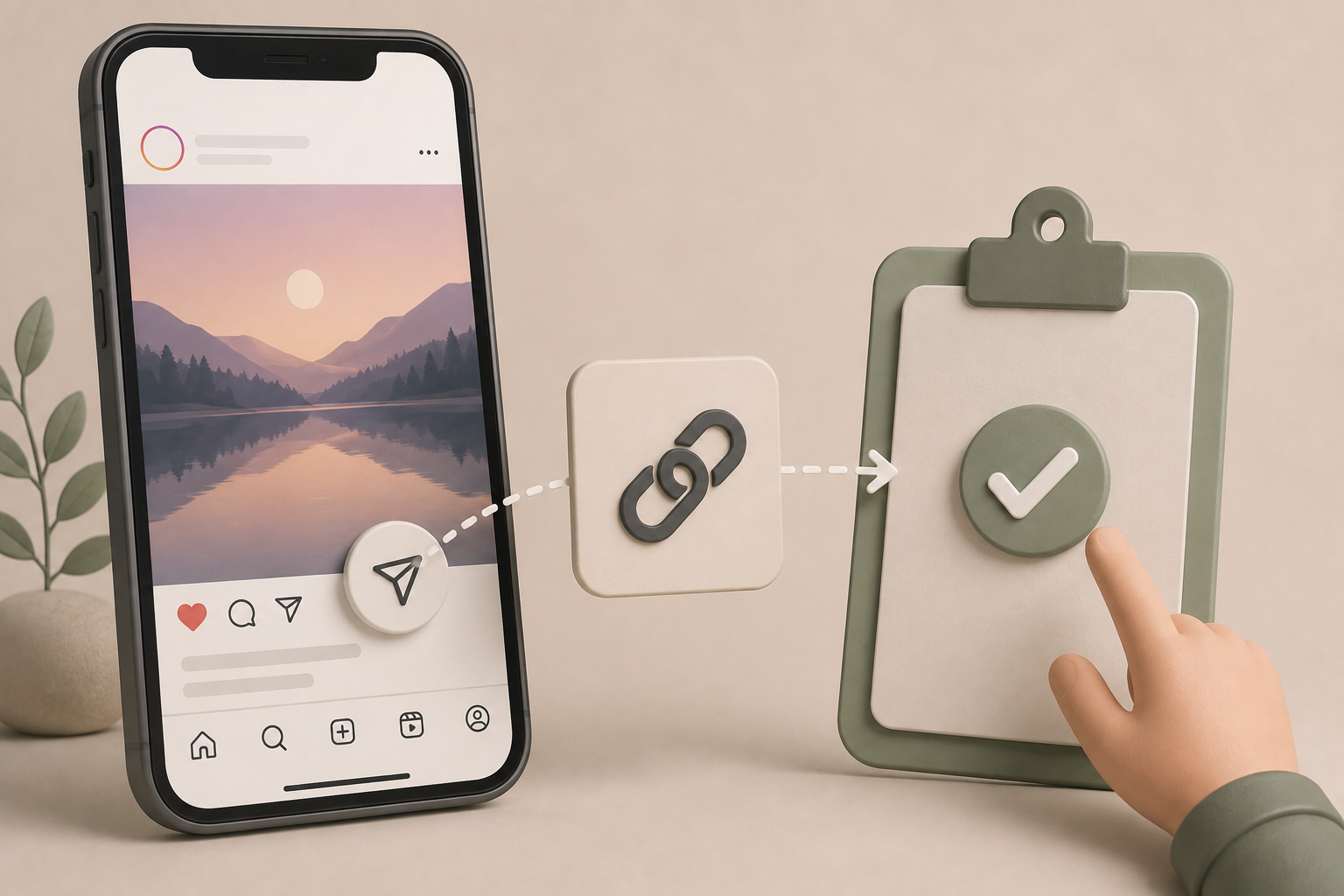
- On newer layouts, the download button quietly moved under the paper airplane (Share) menu you have to swipe sideways through options to find “Download.”reddit
- If you used Instagram’s music library, the app can restrict full audio downloads, so you get weird behaviour like “video only” saves or no download option at all.youtube+1
And of course, the part no polished Reels tutorial admits:
Some days, you simply don’t see the save button and end up screen‑recording like it’s 2018 again.wikihow+1youtube
So the thing nobody says out loud is pretty simple:
Saving Reels to your camera roll is officially possible, but the path changes based on where Instagram decided to hide the button this month.
You’ll see creators on YouTube and TikTok literally make “quick fix” videos where they say:
- Open your profile, tap the Reels tab, open the Reel, hit the three dots, tap Manage, then Download.youtube
- Or: open the Reel, tap the paper airplane, scroll sideways in the share menu until “Download” appears.reddit
- Or: when posting, go into Reel settings and toggle “Save reels to device,” so Instagram silently drops every new Reel into your gallery when you publish.youtube+1
Meanwhile, regular users ask on Reddit, “How can I save a reel to my phone? Instagram used to have the option, now I only see ‘turn off downloading’.”reddit
And someone has to reply, “You have to look under more sharing options… they moved it under the share icon, scroll sideways until you see download.”reddit
So no, you’re not dumb.
Instagram really does keep moving the goalposts on what “Save” looks like.
HOW THIS ACTUALLY WORKS THE REAL MECHANICS
If you strip away the chaos, saving Reels to your camera roll always follows one of four mechanics:
- Direct download from your own Reel.
- Story‑hack saving (share to story → Save).
- Screen‑record the Reel.
- Use an external downloader to save to gallery.
Let’s break them down for iPhone and Android.
1. Direct “Save to Camera Roll” for your own Reels
The classic route:
- Go to your profile, tap the Reels tab, and open the Reel you want to save in full screen.capcut+1youtube
- Tap the three dots at the bottom right, or the Share (paper airplane) icon.hootsuiteyoutubereddit
- On some layouts, you’ll see “Save to Camera Roll” or “Download” right there in the menu.youtubehootsuiteyoutubereddit
- On others, you need to tap “Manage” and then “Download,” or swipe sideways through the share options until you see Download with a downward arrow.capcutyoutubereddit
Once you tap download/save, the video automatically lands in your Photos (iPhone) or Gallery (Android).hootsuiteyoutubecapcut
On iPhone, Hootsuite’s guide spells it out: open the reel, tap three dots, hit “Save to Camera Roll,” done.hootsuite
On Android, YouTube tutorials mirror the same flow: open reel → three dots → Manage → Download → check gallery.youtube+1
2. Auto‑save every Reel you post
Hidden but powerful:
- When creating a new Reel, tap the settings or gear icon while in the creation screen.youtube+1
- Look for the Reels settings section and toggle “Save reels to device” or “Always save reels.”youtube+2
- From then on, every time you publish a Reel, Instagram automatically saves a local copy to your camera roll or gallery.youtube+1
Creators show this as the “do it once, forget forever” setting it quietly auto‑backs up your content with music and no logo in some workflows.youtube+1
3. Story hack: share Reel to story, then save
When direct download isn’t showing up:
- Open the Reel you want to save.
- Tap Share and choose “Add to Story.”yoursocial+2
- Let the reel load in the story editor. Once it’s there, tap the three dots at the top right and choose “Save” or “Save as video.”yoursocial+1
- The video saves to your camera roll; you can delete the temporary story afterwards.yoursocial
CapCut and multiple social blogs show almost the same trick: add reel to story, hit Save from the three dots, and keep the file.gadgets360+2
4. Screen recording (last resort, both platforms)
If all else fails:
On iPhone:
- Go to Settings → Control Center → add “Screen Recording.”capcut+1
- Swipe down from top‑right, tap the record icon, then open Instagram and play the Reel.capcut+1
- Stop recording; the clip saves into Photos as a video.hootsuite+1
On Android:
- Swipe down twice to open Quick Settings, look for Screen Recorder. If missing, edit the panel to add it or install a recording app.wikihow+1
- Start recording, play the Reel, stop recording; the video lands in your Gallery.wikihow+1
Screen recording isn’t pretty, but guides from CapCut and wikiHow still list it as a valid way to get a Reel into your camera roll when Instagram refuses to show download.wikihow+1
The niche corner most generic posts skip?
You can combine these: use auto‑save for future reels, direct download for recent ones, story hack for older ones, and screen record for stubborn content.
COMPARISON WHAT'S ACTUALLY DIFFERENT BETWEEN YOUR OPTIONS
| Option |
What it actually doeshootsuiteyoutube+2capcut+2
|
Who it’s for | The catch | Best for / Verdict |
| Direct “Save / Download” | Saves your own posted Reel straight to camera roll/gallery via three dots or share menu.hootsuiteyoutube+1reddit | Creators saving their own content quickly. | Audio limits with library music; button moves around. | Best primary method. Learn this first. |
| Auto “Save reels to device” | Automatically saves every new Reel you publish to your phone.youtube+2 | People posting regularly and backing up. | Only affects future reels, not old ones. | Best long‑term safety net. |
| Story share + Save hack | Shares Reel to story editor, then saves that preview video.capcut+2 | Users who don’t see direct download. | Potential compression; extra step to delete story. | Reliable backup when download is missing. |
|
Screen recording |
Records your screen while the Reel plays, then saves video to camera roll.capcut+2youtube | Last‑resort users, any content. | Lower quality, includes UI unless cropped. | Emergency option only. |
My take: start with direct Save/Download on your own reels, flip on “Save reels to device” for future safety, and use story + Save when Instagram plays hide‑and‑seek with the button.yoursocialyoutube+2capcut+1
WHAT ACTUALLY HAPPENS WHEN YOU TRY THIS
Let’s walk through it like a normal day, not a polished tutorial.
You’re on your profile, looking at the Reels tab.
There’s one clip that’s still doing numbers maybe a street vlog, a transition you accidentally nailed, or that one meme you posted at 2 a.m.
It’s not backed up anywhere else, and you feel that tiny “if I delete Instagram, this disappears” anxiety.
On iPhone:
- You tap the reel, let it go full‑screen, and hit the three dots in the corner, because every blog says “three dots → Save to Camera Roll.”youtubecapcut+1
- Maybe you see “Save to Camera Roll” immediately. You tap it, wait a second, and it drops into Photos under Recents.capcut+1
On Android:
- You open the Reel, hit the three dots, and see “Manage.” You tap it, then tap “Download” because that’s apparently where they hid it now.youtubecapcut
- You get a tiny progress animation, then find the video sitting in Gallery. Feels almost too easy, given how long you’ve hunted for this.
If you’ve watched newer tutorials, you try the share icon instead:
- You hit the paper airplane, swipe sideways through “Add to story,” “Share to…”, etc., and see “Download” with a little down‑arrow.youtubereddit
- You tap that, and the reel downloads with fewer taps than the three‑dot route. Kind of annoying that the button is there and not where you expected, but it works.
Then you remember something from a YouTube “auto‑save” video and decide to fix future you:
- You start a new Reel, tap the gear/settings icon on the creation screen.youtube+2
- Inside the Reels settings, you find “Save reel to device” or similar, and toggle it on.youtube+1
- You publish your next Reel and notice it magically appears in your camera roll without you doing anything extra. That tiny bit of relief is real you’re not relying on the app’s mood for every save now.
At some point, you try the story hack:
- You open a Reel that doesn’t show any download option.
- You tap Share → Add to Story, wait for it to render in the story editor.gadgets360+2
- Before posting, you tap the three dots in the top‑right and choose “Save” or “Save as video.”yoursocial+1
- The reel lands in your camera roll. You delete the story as soon as it publishes, or even before anyone sees it.
- The thing that surprises you: this works for drafts and older reels that never showed a save button.yoursocial
The moment no one talks about:
You eventually hit a Reel where every method feels annoying no save button, story hack looks messy, auto‑save wasn’t turned on when you posted it.
So you do what tutorials still recommend: screen record.
- You add Screen Recording to Control Center on iPhone, or to Quick Settings on Android.wikihow+2
- You start recording, play the Reel full‑screen, stop recording, and trim the beginning and end later in your gallery edit tools.hootsuite+2
Is it elegant? No.
Does it work when everything else fails? Yes.
And once you’ve done all this once, you stop treating “saving reels to camera roll” like a mystery and start treating it like part of your workflow.
THE ADVICE EVERYONE GIVES VS WHAT ACTUALLY WORKS
Let’s poke at some common advice.
Advice #1: “You can always save any reel to your camera roll with one tap.”
Why it’s wrong: the save/download options are mostly meant for your own Reels, and their visibility depends on layout, audio source, and sometimes region or account type.reddityoutubehootsuite
If you’ve used Instagram’s music library or certain elements, you might not see an audio‑included download at all.youtube+1
Better alternative: expect direct save for your own Reels, but learn the story hack and screen‑record fallback for everything else. That’s how most creators actually operate.youtubewikihow+2
Advice #2: “If you don’t see save, your only option is a third‑party app.”
Why it’s incomplete: guides from CapCut, Hootsuite, and wikiHow all show ways to save or record Reels directly on iPhone and Android without external apps through story saving or built‑in screen recording.wikihow+2
Apps can help, but they’re not mandatory for getting your own content into your camera roll.
Better alternative: master the four built‑in routes (direct save, auto‑save, story + Save, screen record) and introduce apps only if you genuinely want automation or bulk saving.youtube+1capcut+2
Advice #3: “Auto‑save is a gimmick; just download each reel manually.”
Why it underestimates reality: multiple creators demonstrate that toggling “save reels to device” once means every future Reel backs up automatically.youtube+2
If you post often, manual download becomes the bottleneck and you will forget sometimes.
Better alternative: turn on auto‑save for your main accounts and treat manual downloads as the exception, not the rule for old content or secondary accounts.youtube+2
Advice #4: “Screen recording is low‑quality, don’t use it.”
Why it’s half‑true: yes, screen recordings can add UI elements and may not be perfect HD, but modern phones capture at high resolution, and you can crop the interface away.capcut+2
For references, drafts, or quick grabs, it’s a valid fallback when Instagram hides the proper options.
Better alternative: use screen recording intentionally only when direct save or story save fail, and always play the Reel full‑screen with minimal overlay.youtubewikihow+1
THE PRACTICAL PART WHAT TO ACTUALLY DO
1. Turn on “Save reels to device” right now.
Open Instagram, start creating a new Reel, and tap the settings/gear icon on the Reel creation screen.youtube+2
Find the option labelled “Save reels to device” or similar and toggle it on.
From now on, every Reel you publish should automatically save to your camera roll or gallery, so you never again rely only on the app copy of your work.youtube+1
2. Learn the direct save route for your own reels.
Go to your profile, open the Reels tab, and tap one of your posted Reels in full screen.youtubehootsuite+1
On iPhone or Android, tap either the three dots or the share (paper airplane) icon.reddit+1youtube
Look for “Save to Camera Roll,” “Download,” or “Manage → Download,” tap it, then open Photos or Gallery to confirm the reel is there.youtubehootsuiteyoutubereddit+1
3. Use the story‑save hack for missing buttons.
When a Reel doesn’t show any download/save option, tap Share and choose “Add to story.”gadgets360+2
Wait for the story editor to load the Reel, then tap the three dots in the top‑right and select “Save” or “Save as video.”yoursocial+1
Once it’s saved to your camera roll, either post and immediately delete the story or abort posting altogether the important part is the saved video.
4.Set up screen recording on your device as backup.
On iPhone, go to Settings → Control Center and add “Screen Recording.”hootsuite+1
On Android, open Quick Settings, add Screen Recorder if needed, or install a reputable recording app.wikihow+1
Next time all else fails, start recording, play the Reel full‑screen, stop recording, and trim the clip in Photos/Gallery to remove UI.youtubecapcut+2
5. Keep downloaded reels organised.
Once a Reel appears in your Photos or Gallery, immediately drop it into a specific album like “Reels raw” or “IG Reels.”
This avoids the classic “I downloaded it, but now I can’t find it among screenshots and memes” problem.
It also makes it easier to reuse those clips in editors like CapCut later without hunting.capcut
6.Decide your boundaries for saving other people’s Reels.
Saving your own Reels is straightforward; saving others’ content is more of an ethical line.
Use these methods mainly for your own creations, or for Reels where you have a clear reason and ideally permission to keep a copy (collabs, references).youtubewikihow
It keeps your camera roll full of things you actually plan to use, not random clips you’ll never look at again.
QUESTIONS PEOPLE ACTUALLY ASK
how do i save my own instagram reels to camera roll on iphone
Open Instagram and go to your profile, then tap the Reels tab.hootsuite+1
Tap the Reel you want, hit the three dots in the bottom right, and select “Save to Camera Roll” if you see it.hootsuite
On newer layouts, you may need to tap the share icon (paper airplane) and swipe through options until you see “Download.”reddit
Once you tap it, the video will appear in your Photos app under Recents.
how do i save instagram reels to my gallery on android
On Android, open your profile and go to the Reels tab, then tap the Reel to open it.youtubecapcut
Tap the three dots, choose “Manage,” and then tap “Download” to save it.youtubecapcut
Some tutorials also show a download arrow under the share menu for posted Reels.youtubereddit
Check your Gallery app afterwards the video should appear in your recent videos.
how can i automatically save every reel i post to my phone
Start creating a new Reel and tap the settings or gear icon in the creation screen.youtube+2
Look for a setting like “Save reels to device” or “Always save reels” and turn it on.youtube+1
From then on, Instagram will automatically save a copy of each Reel you publish to your camera roll or gallery, so you don’t have to manually download them each time.youtube+1
how do i save a reel if there is no download or save option
If there’s no visible download button, use the story‑save hack.
Tap Share on the Reel, choose “Add to story,” and let it load in the story editor.gadgets360+2
Then tap the three dots at the top‑right and select “Save” or “Save as video” this saves the Reel into your camera roll.yoursocial+1
You can delete the story immediately afterwards so no one even sees it.
can i save other people’s instagram reels to my camera roll
Technically yes, using methods like story share + Save, screen recording, or external downloaders.wikihowyoutubecapcut
But most guides frame this as a tool for saving references or educational content, not for reposting other people’s work as your own.youtubewikihow
If you plan to reuse someone else’s Reel publicly, ask permission or at least credit them saving to your camera roll doesn’t erase ownership.
why can’t i find the save to camera roll option on my reel
Instagram keeps shifting where the download options live.
Sometimes “Save to Camera Roll” is under the three dots, other times “Download” appears under the share icon after you scroll sideways.reddityoutubehootsuite
If your Reel uses certain audio sources, the app may restrict downloads with sound.youtube+1
When the button genuinely isn’t there, use the story‑save hack or screen recording instead.capcut+2
how do i save instagram reels drafts to my phone
You can load a Reel draft into the story editor and save from there.
Open your draft, share it to story, and while it’s loading in Stories, tap the three dots and choose “Save as video.”yoursocial
The draft will save to your camera roll, and you can delete the temporary story once it posts (or before many people see it).
This is a common creator trick to keep drafts as proper files.
is screen recording a good way to save instagram reels
It’s not perfect, but it’s a workable backup.
On iPhone and Android, built‑in screen recording lets you capture a Reel playing full screen and saves it as a video to your Photos or Gallery.wikihow+2
You may need to crop out interface elements or adjust length, and quality may be slightly lower than direct downloads.capcut+1
Use it mainly when direct save and story‑save options fail or don’t appear.
do i need third party apps to save reels to camera roll
Not necessarily.
You can save your own Reels with direct download buttons, auto‑save settings, story hacks, and screen recording all built into Instagram and your phone OS.youtube+2hootsuite+2
Third‑party apps like InstaSaver or other “story saver” tools exist mainly for convenience and automation.play.google+1
If you’re careful and only need occasional saves, built‑in methods are usually enough.
SO WHERE DOES THIS LEAVE YOU
You’re dealing with an app that wants you to create Reels daily but doesn’t always make it obvious how to keep those videos outside its own walls.
Instagram will keep shifting menus, changing labels, and moving the download button between three dots and the share icon.youtubereddit+1
The good news is simple: between direct save, auto‑save, story‑save, and screen recording, you already have everything you need to keep your Reels in your camera roll on both iPhone and Android.youtube+1hootsuite+2youtubecapcut
It’s just a matter of running each method once so your fingers know what to do next time.
One concrete thing you can do today:
Turn on “Save reels to device” in your Reel settings, then practice saving one existing Reel through the three‑dot menu and one stubborn Reel through the story‑save hack.youtubehootsuite+1youtube+1capcut
You won’t fix Instagram’s UX, but you’ll stop trusting it with the only copy of your best videos.
You made it through an article about saving Reels to your camera roll, which already puts you in the “actually cares about their content” category.
The process isn’t pretty, but it can be dependable once you know where Instagram hid the buttons this week.
If there’s one line to remember, it’s this: your camera roll is the only place your Reels belong if you want them to survive whatever Instagram does next.
Everything in this guide is just you quietly making sure that happens.